
This guide will take you through the steps to record a payment in Xero. Simply follow the instructions below to easily mark invoices as paid.
- Login to your account and search the relevant invoice/s in Xero.
- Click on "Add Payment" on the upper right hand side of the invoice.

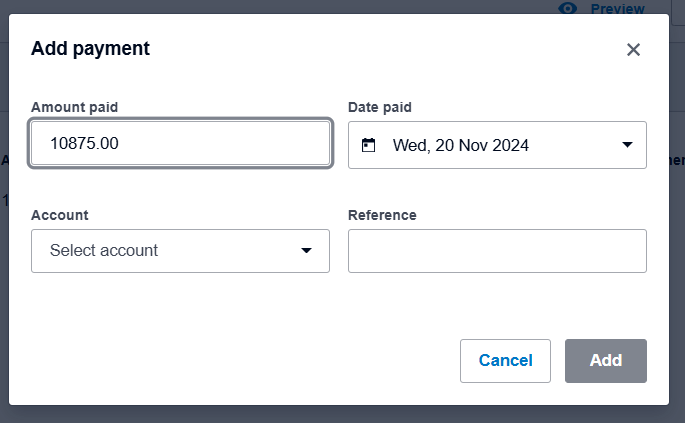
- Add the payment details and click "Add." Ensure the amount paid and the date are correct, and select the relevant account from the dropdown (usually CBAxxx5429).
It's important to fill out the reference field, especially when there are multiple payments (e.g., NSW Gov't. school remittances), to help easily match the payment with the correct school.
- Send the receipt to the school.

Alternatively, you can send the receipt by selecting the option from the dropdown menu found when you click the payment link in the invoice.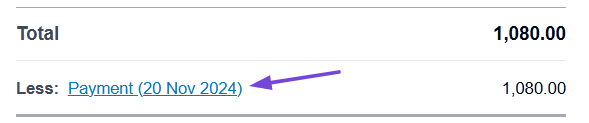
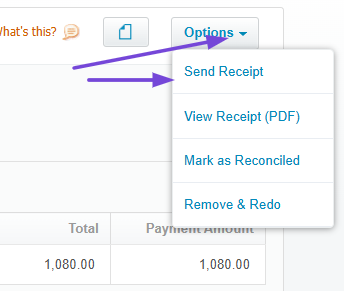
For any questions feel free to reach out to ErinB or Finance.