
- Check for Invoicing Tasks
- Check Hubspot>CRM>Tasks>All for any invoicing tasks or click the bell icon in the top right corner of HubSpot to check for invoicing tasks.
- Check the " AU Deals requiring an Invoice" report or invoicing tasks for details in invoice creation.
- Check Edbuy/Unimarket for any orders from NSW Government Schools. Orders are also received at info@mathspace.co/intercom.
- Watch Edbuy Training Video
- There are instances when we receive purchase orders at info@mathspace.co/intercom such as this:
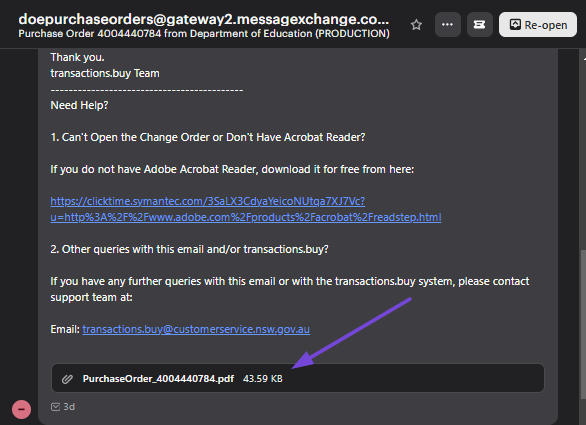
- Simply download the attached P.O., input the purchase order number in the corresponding invoice in Xero, and then send it to SSC.AccountsPayableSchools@det.nsw.edu.au. Please remember to turn off invoice reminders in Xero when emailing SSC.AccountsPayableSchools@det.nsw.edu.au
2. Send the Invoice
- Once an invoice is sent from Xero, return to the relevant HubSpot deal.
3. Record the Invoice Details in Hubspot
-
- On the right-hand side of the deal, locate the "Line Items" section.
- Enter the details of the invoice.
Add Invoice Number
-
- In the product name, click on the "Actions>Edit" button to enter and save the invoice number.
Enter Key Dates
-
- Fill in the following dates:
- Invoice Start Date: Typically 1st January for AU, 1st September for Int'l. Schools
- Invoice End Date: Typically 31st December for AU, 31st August for Int'l. Schools
- Invoice Sent Date
- Payment Date (once available)
- Fill in the following dates:
4. Payments
- Check AU/International school payments daily by logging into CommBank (use the login button at the top right of the page and select 'Commbiz log on') Go to the Accounts tab and select 'Transaction History' to view payment details. Mark the relevant invoice as paid in Xero.
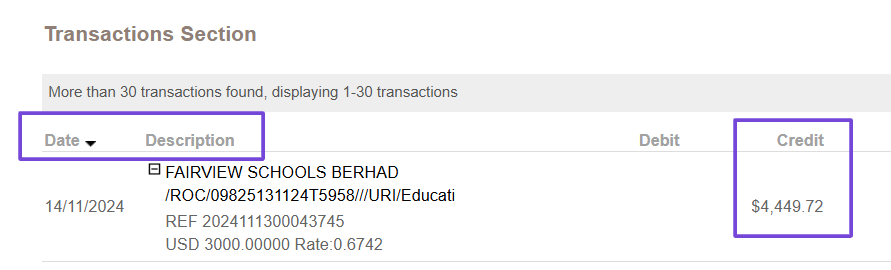
- AU payments are also received in Xero. Simply go to the 'Dashboard' and check each of the listed options one by one:
CBA 10820339 (AUD)
Stripe AUD
- Record the payment date in the Line Item section of the relevant deal in HubSpot. Update the school's subscription end date in Admin if needed.
- Remittance advices are generally received over the intercom or at info@mathspace.co. Feel free to download it for easy reference, and then close the conversation.
- Inform the relevant deal owner if there are any discrepancies in payment.
5. Credit Note - A credit note can be created in Xero from the Kebab menu on the right-hand side of the relevant invoice. This applies when an invoiced order is cancelled, when an inspection copy/textbook is returned, or when there is an outstanding payment to be written off. Usually dated on the first day of the month on when the credit note is created. Reach out to the relevant Sales Consultant or Finance gram@mathspace.com.au for any clarification/questions.
Additional Notes:
Michael has created the following reports to support in invoicing AU Deals:
We're moving from reporting invoicing at the deal level, to reporting it on the line items. All three can be found at the bottom of the AU Progress dashboard:
- The first report is AU Deals requiring an Invoice.
- This shows all the deals that are at Agreement Received, Invoice Sent and Payment Received where both the Invoice Sent date on the deal is missing and the Invoice number on the line item is missing.
- The action for this report is to create the invoice (or find the existing one) and add the relevant details to the deal (Invoice Start Date, Invoice End Date, Invoice Sent Date) and line item (Invoice Number and Invoice Sent Date).
- The second report is AU Deals missing Line Item Invoice Details.
- This shows all the deals where there is an Invoice Sent Date on the deal, but one or more Line Items is missing the Invoice Number. This could be a legitimate situation, because we've issued an invoice and subsequently added additional line items, but the majority are likely just invoices that were sent before we started adding the Invoice Number to the Line Item.
- The action for this report is to check whether the line item in question was on the invoice that we've sent and, if so, add the missing invoice details to the line item(s).
- The third report is AU Deals missing Deal Invoice Details.
- This shows all the deals where there is an Invoice Number added to one or more Line Items, but no Invoice Sent Date on the deal.
- The action for this is to add the Invoice Sent Date to the Deal (and Line Item if it's missing it)
Notes from Michael that is related to the First report:
The line items that remain on the report should now just be those that are awaiting an invoice. If you think any shouldn't be there, let me know and I will adjust the filters accordingly. Otherwise, this report can now be monitored and used as the trigger for you invoicing schools; hopefully making that process easier for everyone
@sales-team-au FYI: The report above pulls in all line items that have been added to deals in won deal stages, filtering out irrelevant ones based on the rules in the screenshot. If @khristine is happy to monitor this moving forwards, it should mean that all invoices can be created and sent without input from you beyond the creation of the line items. One thing that may be worth implementing, but I will await your input on, is to have a "Ready for invoice" checkbox, or a "Date to invoice" field, on the line item so that the report only pulls in deals that we actually want to invoice now. Alternatively, Khris could just use this from January 1st each year (i.e. not before) unless you let her know that a school has requested an early invoice.