
Items that require Dev Support will require a support card to be raised. First of all, bookmark this ClickUp page: https://app.clickup.com/6924803/v/l/li/20484937?pr=6965954
Follow these steps to create a support card:
- Go to the ClickUp page.
- Click + Add Task to create a new issue.
- Add a brief Summary (e.g., “Task Report fails to open — error message shown”).
- Click Save.
- Open the new card and add details in the Description box — include steps to reproduce the issue or what you did to confirm it’s a bug.
- Copy the ClickUp card link (URL) and paste it into the Comment of the corresponding HubSpot conversation.
- Move the ticket/conversation to the 'Developer' inbox.
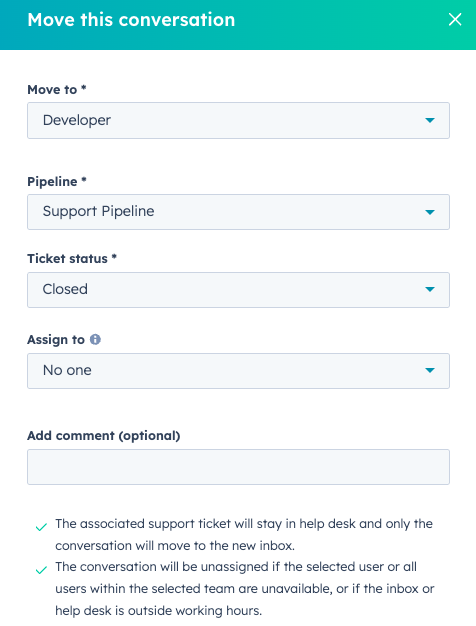
Copy the link/URL of the conversation (Ticket ID) and include it in the description box as well, so the teachers can be informed once the issue has been resolved.
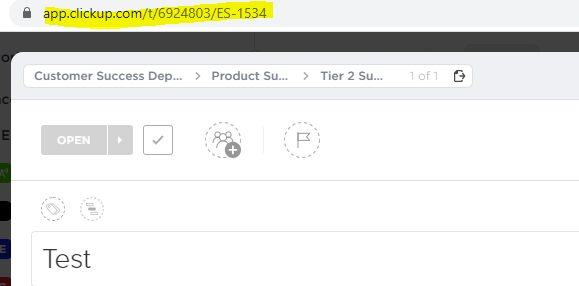
For Tier 2 Support – Moving a Support Card
Once the support card has been finalized, follow these steps:
- Open the menu and select ‘Move’.
- Move the card to:
Product Department > Product Inbox. - Notify the team based on case severity:
- High/critical cases → post to the squad’s channel
- High/critical cases → post to the squad’s channel
- Close the loop: Return to the HubSpot ticket and inform the teacher that the issue has been resolved or the bug has been fixed.